Side note: I still haven't found a place to live. If you didn't catch my about-to-be-homeless post, it's here. I had a couple of promising leads in the comments, but they both flamed out. I have a couple more I'm still pursuing, but if you have something offer, that would be very appreciated.
 First off, for those of you using windows 7, I have a fairly comprehensive Win7 site here. The 'Setup' page is really somethin' else. It solves a number of pesky problems, like those annoying thumbnails that pop up when the pointer's over an entry on the Task Bar.
So, let's start with the Start Menu. If you long for the older style of Windows Start Menu, where everything stays in its proper place and the sub-folders can all be organized by type of program, then grab Classic Shell. The setup page for it is here. He's constantly updating the program, so perhaps not everything will line up with the instructions, but it should be close.
More goodies below the fold, plus some Google tips and some tips for Maggie's commenters.
Next up might be anti-malware programs. One of the 'vaunted' programs out there is called Malwarebytes, but I've found the Microsoft program Microsoft Security Essentials has dug up sneaky malware that Malwarebytes didn't, so that's what I'm using. I have a fairly extensive page on the subject here.
If you want to record streaming video like TV shows, I found a terrific program called Debut. It's commercialware, and the price bounces all over the place (it's usually $39.99), but I figured out a way to get the upgrade for only $20. Details are here. The demo is fully-functioning.
And then there's backing up one's system the way the pros do. That whole "file backup" routine is silly. The proper way is to make a 'disc image' file, which converts the entire C Drive into one big file. If your system ever melts down because a driver went corrupt or you got hit with some nasty virus, you'll be back up and running within minutes. Details are here.
On the subject, have you read about the 'ransomware' making the rounds? It locks up your computer until you pay them off. Here's the latest:
Malware Infections Up As Attackers Develop New Evasion Techniques
Researchers at security firm Avira said the Congur-Android OS ransomware attack typically steals personal and account information while attempting to gain access to device functions and send text messages in attempts to spread the malicious software. The attack also encrypts files on the device and requires the user pay a ransom to unlock the device.
Following is a typical message that the ransomware puts on the victim's computer. With what you've already read in this post, spot the one line that's incorrect:
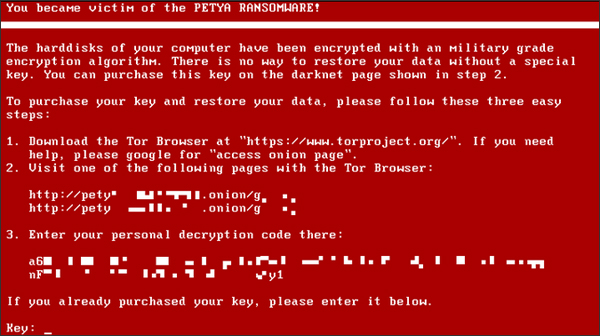
There is no way to restore your data without a special key.
BZZT!
What's that? You've just seen the above message displayed on your computer and all of your files are inaccessible?
You:
1. Slip the Acronis TrueImage disc into your disc drive
2. Run the program, selecting the image file you made just last weekend
3. Wait 3 minutes
And you're back up and running again.
What's that? The latest slick ransomware is so clever that it overwrote the 'boot block' of the hard drive, a section that contains technical info about the drive so that Windows can read it? A good image program like TrueImage also makes a copy of the boot block, so you rewrite that along with the main image file and presto, goodbye clever ransomware.
Moving on, one fun thing that's easy to do is inserting special fonts into a comment or web article. For example, last year we read a lot about the big El Niño that was occurring, and it was somewhat amazing how many articles just spelled it "Nino". Tsk-tsk. Pretty lame, guys. Details are here.
The biggest discovery I've made in the past few years is how incredibly faster the new solid state hard drives are over the old spinning-disc types. The comparison numbers are just startling. Details are here.
Another fun discovery was the 'hard drive caddy', so you can put a second hard drive in a laptop without using the slow USB port. Details are here.
Back to Windows, while I can't speak for Win 8 or 10, I've always thought that the most appreciated tool on Windows is the 'Send To' feature. I use it all the time.
Some examples:
- When I double-click on a video icon, my video player starts playing. But if I want to edit the video, I right-click on the icon and 'send' it to VirtualDub.
- Likewise, when I double-click on an image icon, my image viewer pops up. But if I want to edit the picture, I 'send' it to Photoshop.
- Similarly, when I double-click on a song file, my player pops up, but if I want to edit it, I 'send' it to SourceForge.
- If I'm writing a quick document in Notepad and suddenly want to spell-check it, I 'send' it to MS Word and spell-check it that way.
Setting up the feature is a tad complicated (and, again, I have no idea if the innards of Win 8 & 10 are the same as Win 7), but if you want to give it a shot, the instructions are here.
So, a couple of months ago, I was horsing around on my laptop when suddenly...
poof.
Black screen, dead laptop. Hit the power button — nothing.
I first figured the power supply had died, but that didn't make any sense. The battery should have kicked in as soon as the AC power went off. I spent a few minutes checking power cords and such, hit the power button again, and this time it started right up. As it turned out, the CPU had overheated, which shuts down the rig until things cool off. And the reason the CPU chip overheated?
Dust.
Not only were the little air intake holes half-clogged, but, as it turned out, so was the little tunnel that supplies the cooling air to the CPU chip, and the cooling fan, itself, was a mess. If your laptop is older than a year, and especially if you live in a dusty environment, you might want to check out this page.
One thing that's a little annoying — if not downright unnerving — is popping over to Amazon, checking something out, then drifting over to a different site and seeing the item you just looked at in sidebar and banner ads. Yes, they're tracking your every move. The solution is here.
If you're using multiple email addresses and are tired of logging and re-logging into a site like GMail, the answer is to use a wonderful program called Thunderbird. It's put out by the Firefox people, so it's pretty solid. Details are here.
If you want to get into the intriguing world of computer video, I have a number of tutorials here. There are tools and instructions on how to make a copy of a Netflix or RedBox disc, how to convert DVDs to computer files and vice versa, putting videos online, progs to grab most YouTube-type videos with, and even a few snazzy things, like making that scrolling text you see at the beginning of Star Wars movies using the (not cheap) Adobe After Effects program. There's also a fairly easy way add selectable subtitles to computer movies, which I like, because it seems like there's always a mumbled line or two in every movie.
Now that Google has approximately 17 trillion web sites in its database, here are a few tips to find what you're looking for:
— Putting words inside of quotes will only search for that exact phrase. This is particularly handy when you get some kind of error message on your computer. Type out the exact message, put it in quotes, and you'll be directed to a bunch of forums where people are talking about it.
— Putting a minus sign directly in front of a word (no blank space) will eliminate any page with that word on it. This is also very handy, like when searching for a offbeat usage of a fairly common word. Start eliminating key words associated with the common usages and eventually you'll whittle things down.
— To search a particular site for something, put the word "site:" directly in front of the domain name, like so:
site:http://maggiesfarm.anotherdotcom.com shrillary
Ten, if you're wondering.
Speaking of Maggie's and the comments, if you leave a link and actually want people to read it, take a sec and put a "[url]" in front of it and a "[/url]" after it, no quote marks. Asking people to bother copying & pasting it into a browser is asking a bit much, and some people don't even know how to do it.
Instructions for embedding a link, as well as how to make bulleted lists, colored fonts, etc, are on the 'tips' page below the comments box. The commenting part of the software is actually fairly sophisticated; what's missing is a row of buttons in the comment box controlling all the goodies. But they're there if you don't mind a little extra typing.
Any questions, give a holler in the comments.